
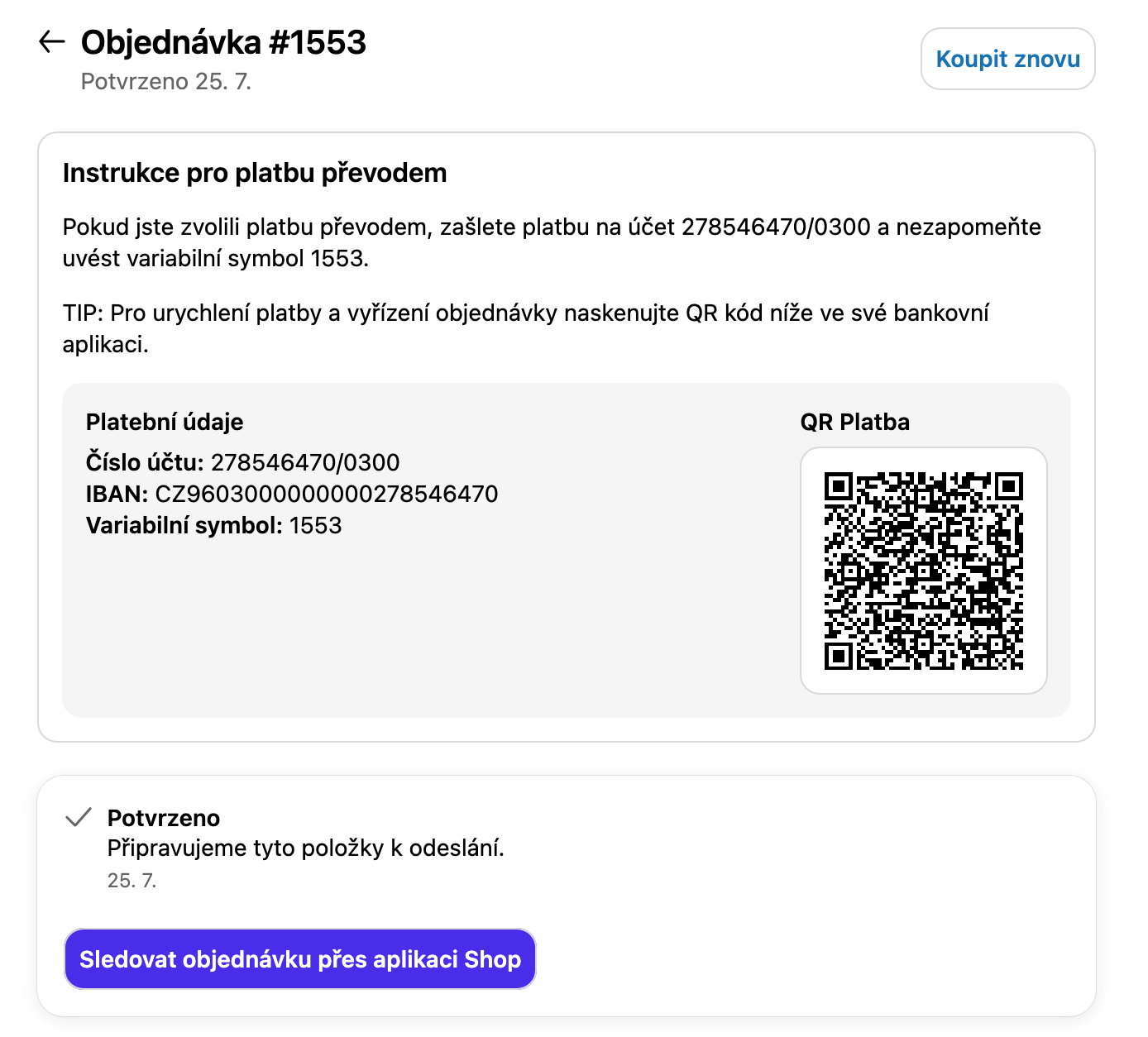
Open QR Payments in the Checkito app.
Click Create Bank account.
Fill in:
Name — an internal label, never shown to the customer (e.g. "CZK – Czechia")
IBAN — the account the money should arrive at
BIC/SWIFT — optional
Currency — the account currency (defaults to EUR)
Countries — the billing countries this account serves
Save with Create Bank account.
Repeat for every currency and market you serve.
Important: The IBAN is not validated. A typo only shows up later in the QR code and in the details your customer sees — check it character by character after saving.
In QR Payments, click Settings.
Payment methods — add the text to look for in your payment method name (e.g. Bank Deposit, deposit, transfer). It is matched as a case-insensitive substring. Leave the list empty and deposit is used.
Custom texts — optionally rewrite Title, Introduction and Tip per language.
Save with Save in the top bar.
Tip: You will find the exact name of your payment method in Shopify admin → Settings → Payments → Manual payment methods. Entering a distinctive part of it is enough.
Important: This is the step people forget. Until the block is placed in the editor, the customer sees nothing — even with the bank account and settings done.
Shopify admin → Settings → Checkout → Customize on your checkout profile.
Switch to the Thank you page.
Click Add app block and pick "Payments - Qr Code".
Position the block where you want it, typically below the order summary.
Repeat on the Order status page so the instructions also appear in the customer account.
Click Save.
The block has no settings of its own in the editor — everything is configured in the Checkito app.
Place a test order and choose your manual payment method at checkout.
Check that the box appears on the Thank you page.
Verify the account number, amount and reference.
Scan the QR code with a banking app and check the pre-filled payment (you do not have to send it).
Open the order status page in the customer account and verify it there too.
Tip: The order is fetched shortly after checkout completes, so the box may appear with a small delay. The app retries automatically.
Field | Required | Description |
Name | Yes | Internal label, not shown to the customer. |
IBAN | Yes | The account number. Not validated. |
BIC/SWIFT | No | Never shown to the customer; used only inside the PAY by square code. |
Currency | Yes | Account currency, defaults to EUR. Decides which QR standard is generated. |
Countries | Technically no, in practice yes | Billing countries the account serves. An account with no countries is never used. |
Currencies (12): CZK, EUR, PLN, HUF, GBP, CHF, DKK, SEK, NOK, RON, BGN, USD
Countries (30): CZ, SK, DE, AT, PL, HU, NL, BE, FR, IT, ES, PT, GB, IE, DK, SE, NO, FI, CH, LU, SI, HR, RO, BG, GR, EE, LV, LT, MT, CY
There is no limit on the number of accounts.
Setting | Description |
Payment methods | List of strings. The block appears when the order's payment gateway name contains any of them (case-insensitive). Empty list falls back to deposit. |
Custom texts → Title | Heading of the box. |
Custom texts → Introduction | Opening paragraph. Supports the {{account}} and {{vs}} placeholders. |
Custom texts → Tip | The hint about scanning the code. |
Language | Switches the language you are writing texts for. Languages with texts filled in are marked ✓. |
The labels inside the payment details panel (Payment details, Account number, IBAN, Reference) and the QR code captions cannot be overridden.
The standard is chosen by the currency of the bank account — not the order currency — and, for euro, also by the billing country.
Account currency | Condition | Code generated | Caption shown |
CZK | — | SPAYD | QR Platba |
EUR | billing country SK or IBAN starts with SK | PAY by square + SEPA EPC (two codes) | PAY by square, SEPA QR (EPC) |
EUR | otherwise | SEPA EPC | SEPA QR (EPC) |
PLN | IBAN is PL + 26 digits | ZBP | QR transfer (Poland) |
any other | IBAN starts with CZ or SK | SPAYD | QR Platba |
any other | any other IBAN | no QR code | — (written instructions only) |
SPAYD carries the IBAN, amount, currency, due date, message and variable symbol. The due date is the day the page is viewed. Constant and specific symbols are not supported.
PAY by square is generated alongside SEPA EPC for Slovak euro orders. It is the only standard that actually uses the BIC/SWIFT you entered.
SEPA EPC (EPC069-12, version 002) always carries the amount in EUR. The BIC is left out — banks derive it from the IBAN. Beneficiary name is capped at 70 characters, message at 140.
ZBP uses the NRB account number (IBAN without the PL prefix) and the amount in grosze. Beneficiary is capped at 20 characters, payment title at 32. Requires an IBAN of exactly PL + 26 digits.
Country is a hard filter. Only accounts whose Countries include the order's billing country are eligible.
Currency is a preference. Among the eligible accounts, the one whose Currency matches the order currency wins.
First eligible wins otherwise. If none matches the currency, the first account that passed the country filter is used.
Important: If no account covers the customer's billing country, nothing is shown — no QR code and no payment details, even when the currency matches. The same applies to orders without a billing address.
In QR Payments → Settings → Custom texts you can rewrite three texts per language: Title, Introduction and Tip. An empty field falls back to the built-in translation.
The Introduction supports two placeholders:
Replaced with | Placeholder |
{{account}} | The local account number, or the IBAN when it cannot be derived |
{{vs}} | The reference number (order number) |
Example:
You chose to pay by bank transfer. Please send the amount to {{account}}
using {{vs}} as the reference. We ship as soon as the payment arrives.
Built-in translations exist for English, Czech, Slovak, Polish and French. You can also enter your own texts for German, Hungarian and Romanian — those have no built-in translation, so without custom texts those customers see English.
The language is matched against the customer's checkout language (first the full code such as cs-CZ, then cs).
These come straight from the order and cannot be configured:
Value | Source |
Amount | The outstanding balance of the order, not the original total. Partial payments and refunds are reflected. |
Currency | The presentment currency of the order. |
Reference / variable symbol | The Shopify order number. |
Beneficiary | The account name, falling back to the shop domain. |
Message | Text from translations. Default: Order payment {{vs}}. |
Due date (SPAYD only) | The day the customer views the page. |
Local account number | Derived from Czech and Slovak IBANs only, as prefix-number/bank code (e.g. CZ6508000000192000145399 → 19-2000145399/0800). For other IBANs the row is hidden and only the IBAN is shown. |
No payment reconciliation — the app does not track whether the money arrived and does not change the order status.
No email delivery — the block lives on the Thank you page and the order status page only.
The QR code and box appearance cannot be styled; the block has no settings in the checkout editor.
The due date, constant symbol, specific symbol, reference and message cannot be customised.
Display cannot be conditioned on country, currency, order value, product or customer tag. The only conditions are the payment method name and the unpaid status.
BIC/SWIFT is never shown to the customer.
Work through this list — the first four cover almost every case:
The "Payments - Qr Code" block is not added in the checkout editor. By far the most common cause (see Step 3).
The payment method name does not match. Check that one of the strings in Settings → Payment methods is contained in the gateway name the customer used. An empty list looks for deposit.
The order is already paid. The block only appears for orders in the PENDING financial status.
No account covers the billing country. Open the account and check Countries. An account with no countries is never used.
The order has no billing address, so there is no country to match.
You are on the Free plan. QR payments are disabled there.
No bank account has been created.
Tip: Shopify's bogus test gateway bypasses the PENDING requirement, which makes it handy for verifying that the block is placed correctly.
The account currency is not CZK, EUR or PLN and the account is not Czech or Slovak (IBAN does not start with CZ or SK). Add an account with a CZ/SK IBAN, or a EUR account for SEPA.
A Polish account whose IBAN is not PL + 26 digits. Check it digit by digit.
A typo in the IBAN. The IBAN is not validated, so a broken one surfaces exactly this way.
It is derived from CZ and SK IBANs only — for other countries the row is hidden on purpose. If it shows but does not match your real account, the IBAN is almost certainly mistyped. A zero prefix is omitted, so CZ...000000 correctly renders as 2000145399/0800.
The QR code carries the outstanding balance, not the original order total. Partial payments, refunds and order edits are reflected in it.
There is no built-in translation for their checkout language and no custom text is filled in. This affects German (de), Hungarian (hu) and Romanian (ro) — add your texts in Settings → Custom texts.
Where exactly does the QR code appear? On the Thank you page after checkout and on the order status page in the customer account. Nowhere else — in particular, not in emails.
Can I use a different account per currency? Yes, and we recommend it. Create one account per currency and select the matching countries on each.
How many bank accounts can I create? There is no limit.
Will a QR code be generated for a currency other than CZK, EUR or PLN? Only if the account is Czech or Slovak (IBAN starting with CZ or SK), in which case SPAYD is used. Otherwise the customer gets written instructions without a code.
Why do Slovak orders show two QR codes? For euro orders with a Slovak billing address or IBAN we generate both PAY by square and SEPA EPC, so any banking app works.
Do I have to fill in BIC/SWIFT? No. Banks derive it from the IBAN. Fill it in only if you rely on PAY by square and want it included.
Does the app mark the order as paid once the customer transfers the money? No. It neither tracks nor reconciles payments — you change the order status yourself.
Can I add a constant or specific symbol? No. Only the variable symbol (reference) is supported.
Can I change the size or colour of the QR code? No. Neither the code nor the box can be styled.
Can I show the QR code only above a certain order value or for a certain country? No. The only conditions are the payment method name and the unpaid order status.
I changed the settings but the customer still sees the old texts. Make sure you saved with Save in the top bar, and that you filled the texts in for the language the customer actually uses at checkout.
